Print Case Labels and Pallet Tags
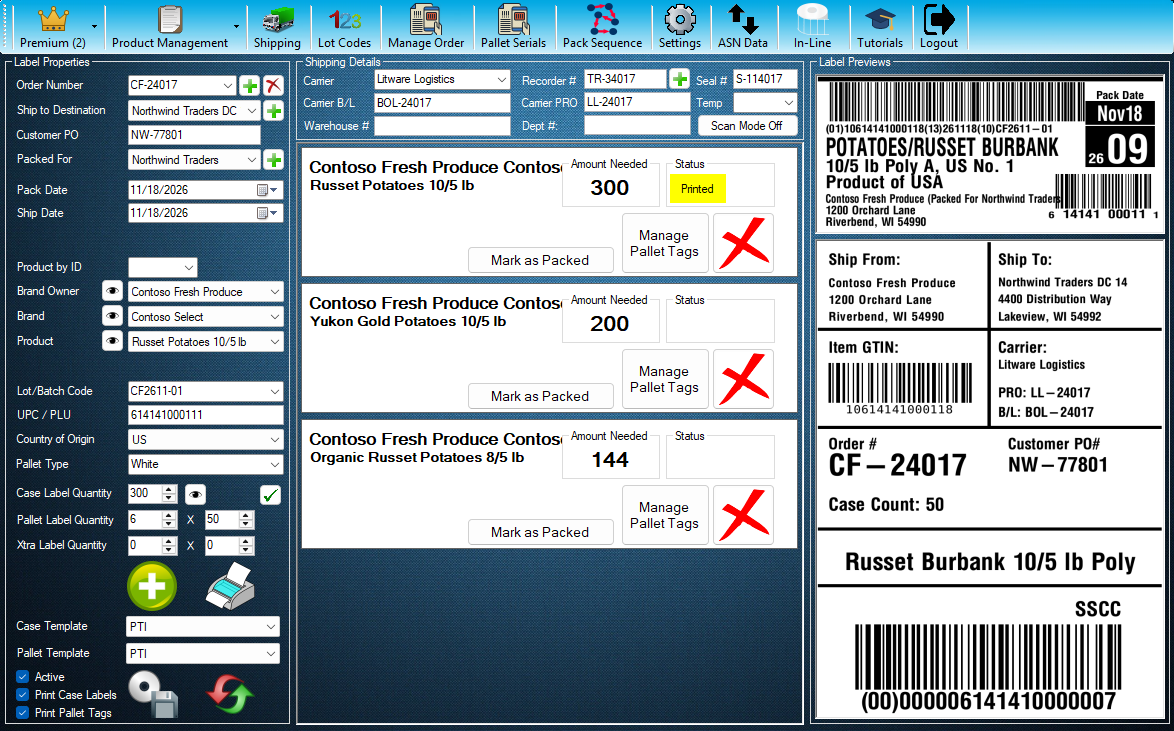
Start with the order number, fill in the order and the product, add it to the order manifest with the green +, then work with its card and print.
- 37 Steps
- Also Built Into myPTI
Step 1 / 37
Start with the Order Number
Always start here: everything you print is tied to the order. Pick an order to load its details and manifest, or type a new number. A new number clears the order details on screen.
Step 1 of 37: Start with the Order Number
All 37 Steps
Every Step, as Text
The same steps as the interactive tutorial above. Select a step to open it there.
- 01Start with the Order NumberAlways start here: everything you print is tied to the order. Pick an order to load its details and manifest, or type a new number. A new number clears the order details on screen.
- 02Delete the OrderThe red X deletes this order with its manifest, pallet tags and ASN. myPTI asks first. It cannot be undone.
- 03Ship to DestinationWhere the order ships. A change saves to the order, sets the carrier and clears the brand owner, brand and product. The button beside it adds a destination.
- 04Customer POThe customer's PO number, saved to the order when you leave the box. With the Walmart or Aldi pallet template, pallet tags need it and the Ship To Destination.
- 05Packed ForThe company you pack for. A change saves to the order, clears the brand owner, brand and product, and picks that company's default brand owner if set. The button beside it adds a company.
- 06Pack DateThe date packed, for labels that show one. Picking an order sets it to the order's ship date, so check it before you add a product.
- 07Ship DateThe day the order ships, saved to the order. It is never earlier than the pack date: move one past the other and myPTI moves the other to match.
- 08Product by IDKnow the product ID? Type or pick it here and press Enter. myPTI fills in the brand owner, brand and product for you.
- 09Brand OwnerOr pick the product yourself, starting with the company that owns the brand. Its brands fill the Brand list, and myPTI can pick one, such as Walmart for a Walmart Ship To.
- 10BrandThe brand on the label. Its products fill the Product list. A brand that needs ASN data fills in Packed For when it is empty.
- 11ProductPicking it fills in UPC / PLU, Country of Origin, Pallet Type, the templates, what prints, and the lot code when there is a default. The label quantities are cleared.
- 12Lot/Batch CodePick or type the lot code. myPTI will not add the product to the manifest, or print it, without one.
- 13UPC / PLUFills in from the product: its PLU if it has one, or its UPC. With a Walmart template, the green + will not add the product without it.
- 14Country of OriginFills in with your company's country from Settings. Change it when this product came from somewhere else. It goes on the labels that show it.
- 15Pallet TypeFills in from the product and is saved with the card. Shipping uses it to count the order's pallets by type.
- 16Case Label QuantityHow many case labels, one per case. Enter it and myPTI works out the pallet tags and Xtra tags below from the product's pallet case count.
- 17Pallet Label QuantityPallet tags for the full pallets, with the cases on each beside the X. myPTI fills both in. For some brands they stay locked until you click the X.
- 18Xtra Label QuantityTags for the last pallet when it is not full, with its cases beside the X. myPTI fills these in when the cases do not make whole pallets.
- 19Case TemplateThe case label design. It fills in from the brand, or from the choice you saved for this product. Changing it redraws the preview.
- 20Pallet TemplateThe pallet tag design. It fills in the same way as the case template.
- 21Print Case LabelsTicked, case labels print. It fills in from the product and is saved with the card. Untick it to print pallet tags only.
- 22Print Pallet TagsTicked, pallet tags print. Untick it to print case labels only.
- 23Check the PreviewsThe case label and pallet tag show here once an order number and a product are picked. What you see here is what prints.
- 24Add to the Order ManifestThe green + adds the product, its lot code and quantities to the order's manifest as a card, waiting to print. Nothing prints yet. The product and quantities then clear for the next one.
- 25Or Print NowThe printer button adds the product as a new card and prints it at once, and sets the Ship Date to the Pack Date. To print a card already there, use the card's buttons.
- 26The Order ManifestEach product added with case labels shows here as a card: brand owner and brand, product, Amount Needed and Status. Awaiting Printing is red until it prints.
- 27Pick a CardClick a card (anywhere but its buttons) to work on it. It turns green, and its product, lot code, quantities, templates and what prints load back into the fields on the left.
- 28Change it Before You PrintWith a card picked, change its quantities, lot code or what prints on the left. The card's print buttons print what the fields show. The card keeps the amount it was added with.
- 29Print AllA picked card that is Awaiting Printing shows Print All. It prints the case labels and pallet tags that are ticked on the left, then the card shows Printed.
- 30Print Case LabelsPrint Case Labels on a picked card prints only its case labels. The card then shows Case Labels Printed and keeps Print Pallet Tags for later.
- 31Print Pallet TagsPrint Pallet Tags on a picked card prints only its pallet tags. It shows Pallet Tags Printed until the case labels print too, then Printed.
- 32Send to Inline PrinterA picked card also shows Send to Inline Printer. It opens In-Line Printing with this card's details, to send its case labels to an in-line printer.
- 33Manage Pallet TagsManage Pallet Tags on a card opens the pallet tags printed for its product on this order, with Re-Print Pallet Tags, Update Selected and Delete Selected.
- 34Remove a CardThe red X at the right of a card removes that product from the order. myPTI asks first, and the pallet tags printed for it are marked deleted.
- 35ActiveUntick Active and press the save button beside it to take this product off the Product list. It stays off only while Allow Product Disabling is ticked in Settings.
- 36Save PreferencesSaves Active, both templates and what prints for this product. myPTI shows what will change and asks first. Next time you pick the product, they fill in.
- 37Reset All FieldsClears every field, the order number and the manifest on screen, ready for the next order. Nothing is deleted. The tutorial never prints anything for you.
Ready to Print Your First Compliant Label?
Email us for a free trial account. We'll set you up, and the tutorials take it from there.