Send case labels to an in-line printer
Send a product's case labels to the in-line printer you choose.
- 7 steps
- Also built into myPTI
Step 1 / 7
In-line
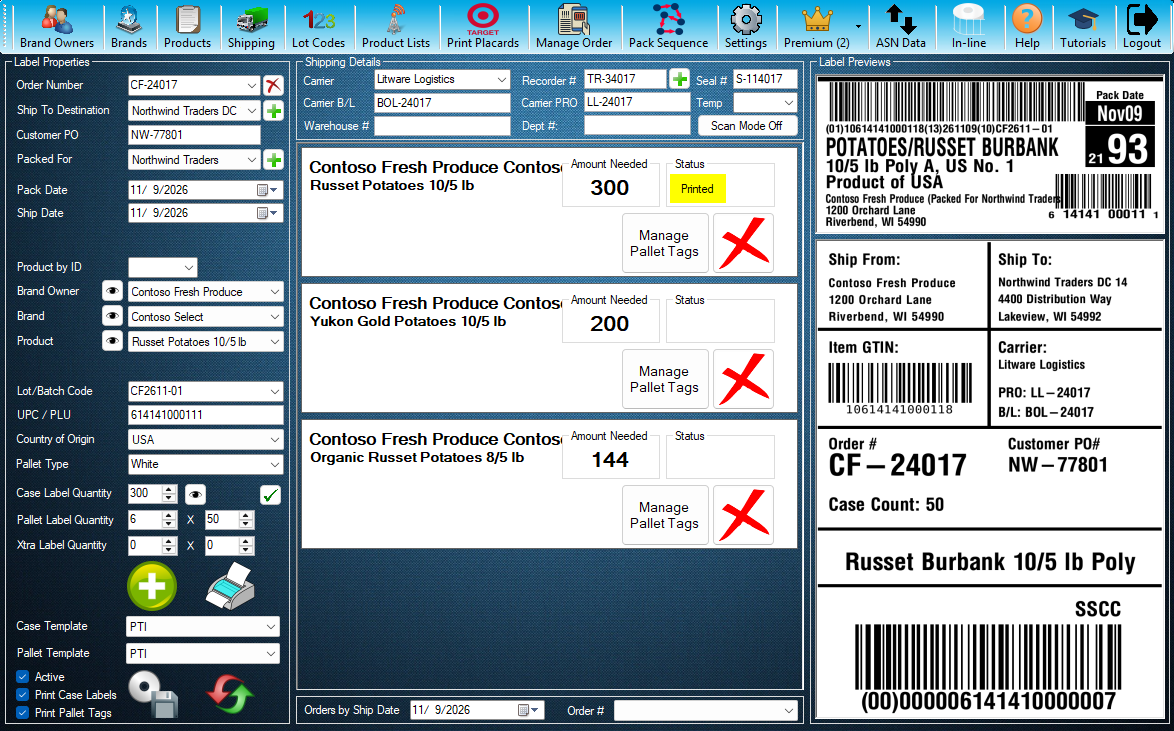
In-line sends case labels to an in-line printer. Pick a product line in the order list first and its details fill in. Press In-line to open it.
Click the highlighted control, or press Next.
Step 1 of 7: In-line
All 7 steps
Every step, as text
The same steps as the interactive tutorial above. Select a step to open it there.
- 01In-lineIn-line sends case labels to an in-line printer. Pick a product line in the order list first and its details fill in. Press In-line to open it.
- 02PrinterChoose the in-line printer the labels go to.
- 03Product by IDFind a product by its ID instead of picking it from the lists.
- 04Label PropertiesThe packed for company, brand owner, brand and product on the label.
- 05Lot/Batch CodeThe lot code that prints on these labels.
- 06Case LabelCheck the case label here before you send it.
- 07Send To PrinterSends the labels to the printer you chose and closes this window. The tutorial never prints anything for you.
Keep going
Up next
Printing
Print case labels and pallet tags
Choose what prints and how many, check the previews, then add the product to the order or print it straight away.
10 stepsStartPrinting
Print Target placards
Enter a Target trip, its POs and cartons, check the preview and print the placards.
9 stepsStartPack Sequence
Plan the day's pack sequence
See what to pack on a date, sort it, put it in your own order and hide what has shipped.
6 stepsStart
Ready to print your first compliant label?
Email us for a free trial account. We'll set you up, and the tutorials take it from there.