Plan the Day's Pack Sequence
See what to pack for the orders shipping on a date, sort it, put it in your own order, print and mark it packed.
- 6 Steps
- Also Built Into myPTI
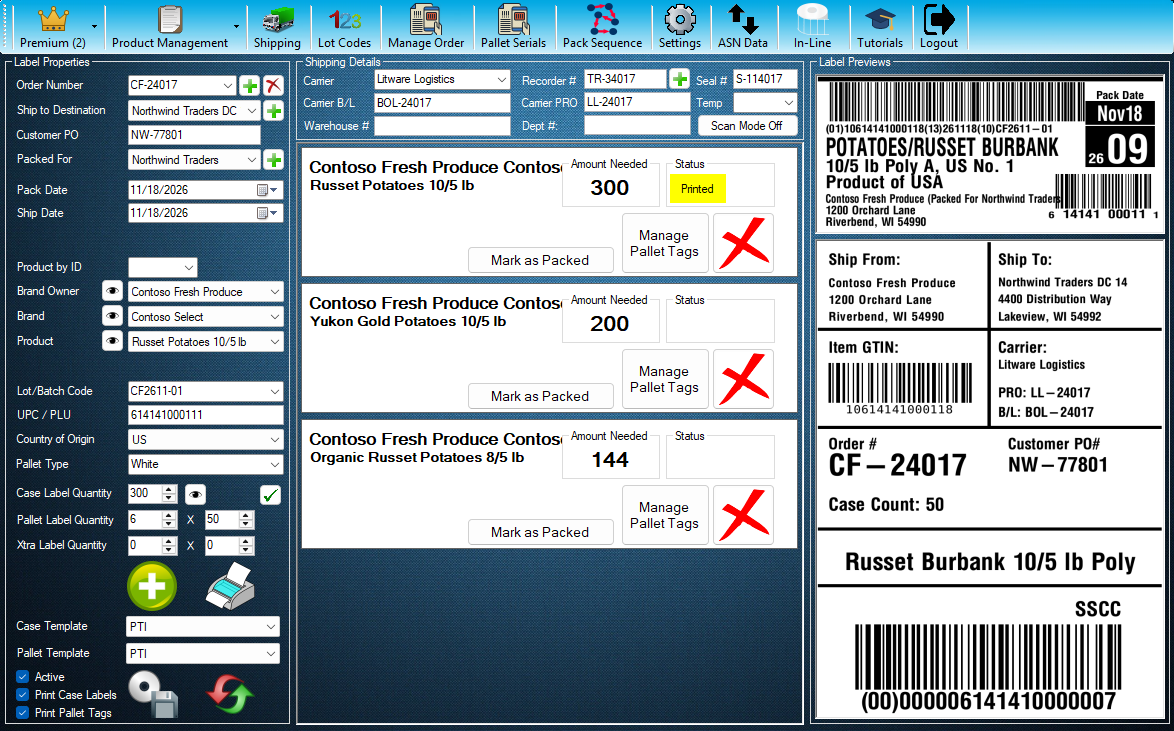
Step 1 / 6
Pack Sequence
Pack Sequence lists what to pack for the orders shipping on a day. Press Pack Sequence to open it.
Click the highlighted control, or press Next.
Step 1 of 6: Pack Sequence
All 6 Steps
Every Step, as Text
The same steps as the interactive tutorial above. Select a step to open it there.
- 01Pack SequencePack Sequence lists what to pack for the orders shipping on a day. Press Pack Sequence to open it.
- 02DatePick a ship date. The products on the orders shipping that day are listed. It opens on today.
- 03Sort BySort by product name or order number, or choose User Defined to set your own order. myPTI remembers your choice.
- 04Hide Shipped ItemsTick it to hide orders that have shipped, so only the work left shows. myPTI remembers it.
- 05What to PackEach line shows the company, product, destination, amount, pallet count and status. Click a line to pick it. One Awaiting Printing shows Print, which prints it.
- 06Mark as PackedA printed line shows Mark as Packed. Press it once the product is packed and its status turns green. The list refreshes when someone changes it. Close this window when you are done.
Ready to Print Your First Compliant Label?
Email us for a free trial account. We'll set you up, and the tutorials take it from there.