Record and upload temperature recorders
Scan the order, PO and temperature recorder, save them to the order and upload them to the receiver.
- 8 steps
- Also built into myPTI
Step 1 / 8
Temp Recorders
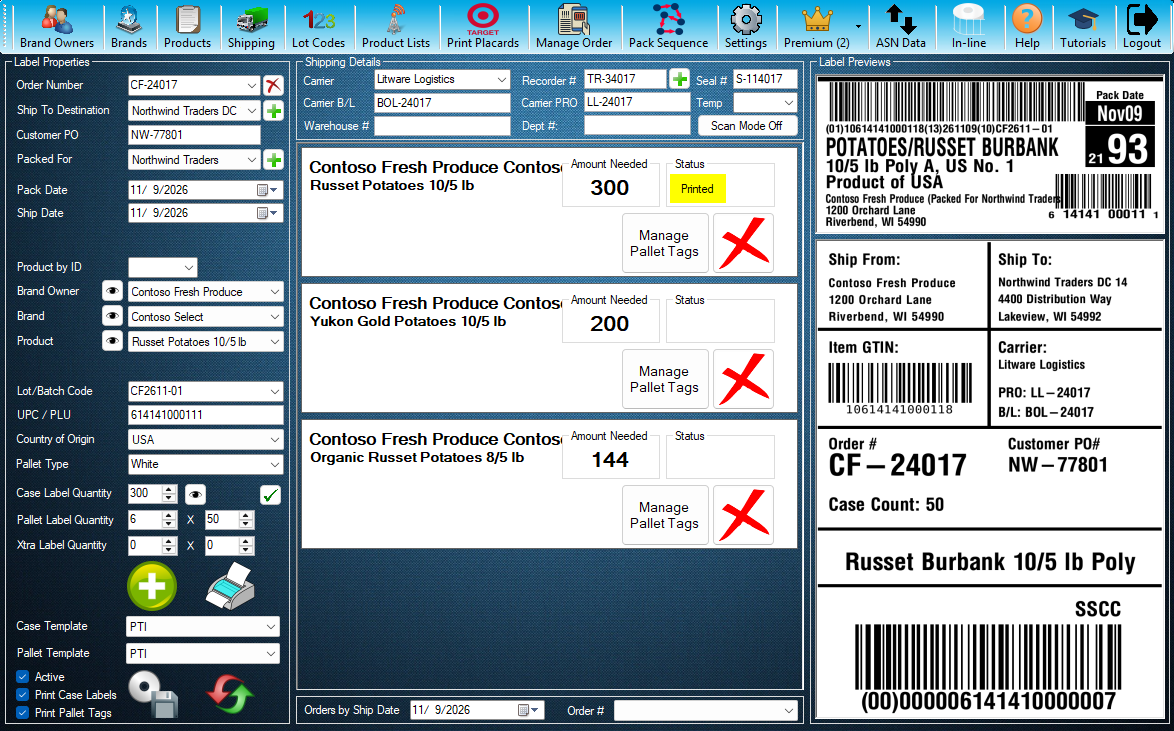
Temp Recorders is where you record the temperature recorder that rides with an order. Press this button beside Recorder # to open it.
Click the highlighted control, or press Next.
Step 1 of 8: Temp Recorders
All 8 steps
Every step, as text
The same steps as the interactive tutorial above. Select a step to open it there.
- 01Temp RecordersTemp Recorders is where you record the temperature recorder that rides with an order. Press this button beside Recorder # to open it.
- 02Scan hereIn Scan Mode, scan the order, PO and recorder barcodes into this box. myPTI puts each number in its own box.
- 03Scan ModeSwitches between Scan Mode and Manual Mode. In Manual Mode you type the numbers into their boxes.
- 04Recorder #The recorder number, with the order number and customer PO beside it.
- 05ReceiverThe company that receives the recorder data. Only companies that accept recorder data are listed.
- 06Save DataSaves the recorder number and PO to the order.
- 07Upload DataSends the recorder details to the receiver. It needs the order, recorder, PO and receiver, and each order's recorder uploads once.
- 08Uploaded recordersRecorders already uploaded are listed here. Close this window when you are done.
Keep going
Up next
Reports
Find orders and print reports
Open Reports from Shipping, find orders by number, customer or date, choose what to show, then preview, print or open them in Excel.
10 stepsStartSettings
Set up your company, printers and options
Company details, the eye buttons, your case label and pallet tag printers and your default lot code.
9 stepsStartSubscription
Check your Premium subscription
See your company's Premium status and price, subscribe, buy a License or manage billing.
8 stepsStart
Ready to print your first compliant label?
Email us for a free trial account. We'll set you up, and the tutorials take it from there.