Send and read messages
Send messages and files to your team, your company or myPTI Support, and file what you receive.
- 9 steps
- Also built into myPTI
- Premium feature
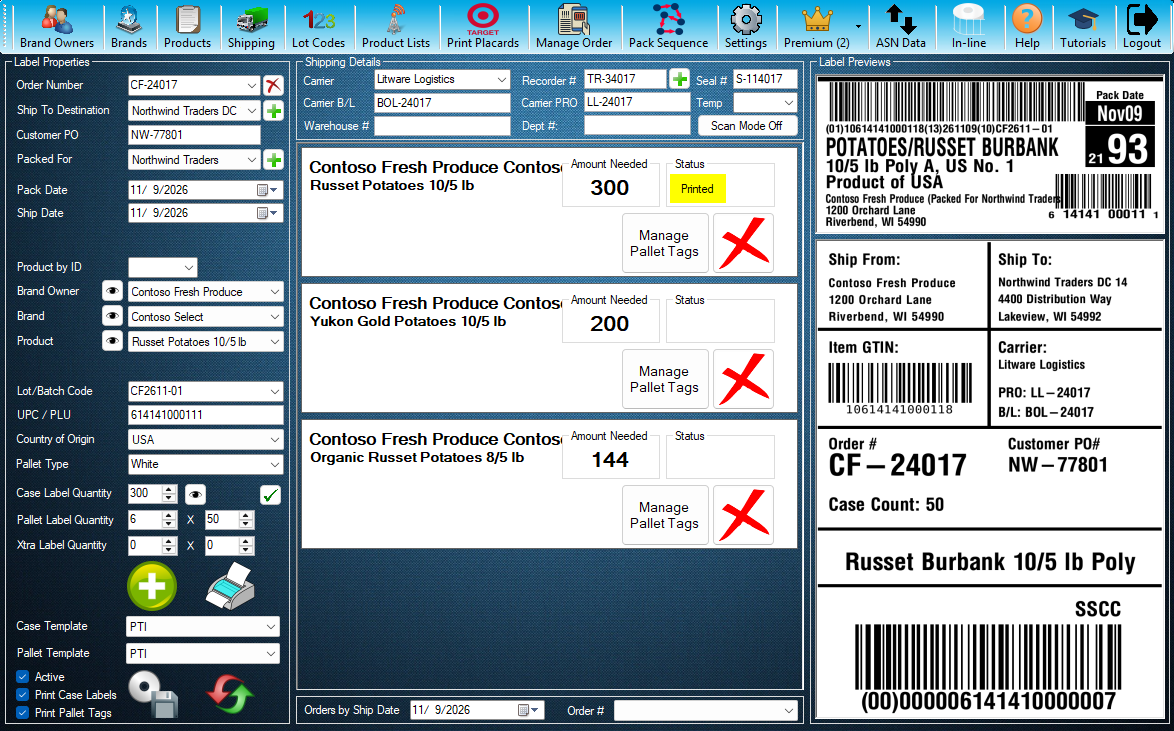
Step 1 / 9
Notifications
Notifications is a myPTI Premium feature. It is in the Premium menu. Open Premium to go on.
Click the highlighted control, or press Next.
Step 1 of 9: Notifications
All 9 steps
Every step, as text
The same steps as the interactive tutorial above. Select a step to open it there.
- 01NotificationsNotifications is a myPTI Premium feature. It is in the Premium menu. Open Premium to go on.
- 02Open NotificationsPress Notifications. Without Premium you can still look around: Notifications opens just for this tutorial and closes when it ends.
- 03FoldersInbox, Sent and Archived, and any folders you make. Pick one to see its messages.
- 04MessagesThe messages in the folder you picked. Pick one to read it below, where Reply and Archive are.
- 05New messageWrite to a person, your whole company or myPTI Support.
- 06ReplyAnswers the message you are reading. Reply all answers everyone on it.
- 07ArchiveMoves the message you are reading out of your Inbox into Archived.
- 08New folderMakes your own folder to file messages in.
- 09RefreshChecks for new messages. Close this window when you are done.
Keep going
Up next
- Premium
Premium features
Run a mock recall
Trace a lot forward to every shipment and save the mock recall report for your audits.
7 stepsStart - Premium
Premium features
Keep pallet accounts
Keep a running count of the pallets you hold with each pallet company, by pallet type.
8 stepsStart - Premium
Premium features
Record pallet deliveries
Record the pallets delivered to you and keep the delivery paperwork with them.
7 stepsStart
Ready to print your first compliant label?
Email us for a free trial account. We'll set you up, and the tutorials take it from there.